


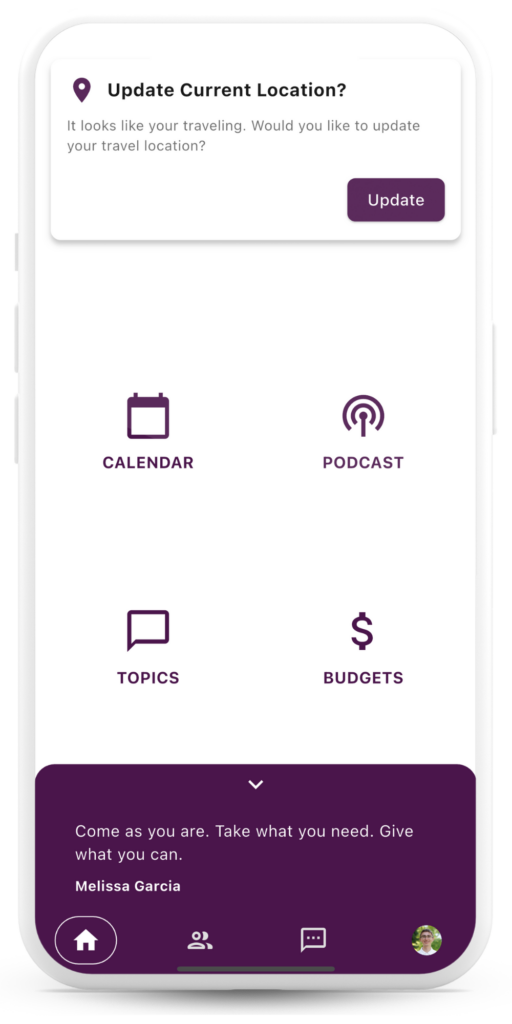
Getting Started Video
(5 min.)
- Open the App
- Launch the Community Catalyst app on your device.
- Tap Forgot Password and enter the email associated with your Community Catalyst account.
- Click Send Reset to receive a password reset email.
- Reset Your Password
- Check your email inbox for the password reset email.
- Click the Reset Password button in the email.
- Set a new password on the reset page and confirm.
- Log In
- Return to the app and log in using your email and new password.
- Once signed in, the onboarding process will begin.
- Set Up Your Profile
- Tap Next and fill out the requested information:
- Your name (or adjust if necessary).
- Add a phone number and contact email (this is shared with members but won’t affect your account email).
- Optionally, add your mailing address (used for expense submissions, not shared with others).
- Upload and crop a profile image if desired by clicking the grey circle.
- Tap Next and fill out the requested information:
- Grant Location Permissions
- Allow location sharing permissions:
- Choose Approximate or Precise (Precise is recommended for accuracy).
- Select While using the app to enable location updates only when the app is open.
- Tap Next to set your location:
- Enter your home address or tap Use Current Location.
- Your location will be randomized to the nearest city for privacy.
- Allow location sharing permissions:
- Set Notifications
- Choose whether to enable notifications (recommended).
- Notifications will alert you to events like expense submission updates.
- Customize Sharing Settings
- Decide what information to share with other Catalyst members:
- Email, phone number, or appearance on the user directory map.
- Adjust these settings as needed.
- Decide what information to share with other Catalyst members:
- Complete Onboarding
- Tap Next and then Done to finish setting up your account.
- Training and Support
- Join a training session or watch recorded tutorials to learn about the app’s features, including expense submissions and member communication.
- Contact the Best Point team or Community Catalyst admins for assistance if needed.
- Your account’s email will be the one you supplied when first joining the Community Catalyst program.
- If you see a green message, you used the correct email and your reset password email has been sent!
- If you see a red message, try using another email.
- Otherwise, you can reach out to us using the form below and we can help you find the email you originally used.
- If the message was green, check your inbox. It may take a few minutes to arrive, but if you don’t see it, try checking your spam folder.
- If it has been a few minutes, try searching for an email from no-reply@community-catalysts.bestpointwebdesign.com – this will be the email used for all app emails.
- If you are using an organizational email, you may need to reach out to your IT department to add no-reply@community-catalysts.bestpointwebdesign.com to the “allowlist” for their spam filter or email firewall.
- When you find the email, you can go ahead and use the link to set your password! You can now go back to the app and use your newly-set information to setup your account.
- Enjoy!
Questions?